Your first unit is running smoothly and now there's a second: another condo in the same tower, your family's beach house, or a room at the inn. You don't need to start from scratch. GoTuloy lets you copy your best page, change what's different, and manage everything from one dashboard. This guide covers how to add the property, what copying includes, how to switch between pages, and what it does to your bill.
Key takeaways
- Press Add property on the Properties page. Each property gets its own page, link, QR poster and stay code.
- Copying an existing page saves time, but it also copies the Private section. Replace those codes before you publish.
- Drafts are free. The Free plan includes one live page, and the Host plan is ₱249 a month for each live page.
- Settings, guest services and the chat switch aren't copied. Set them for each property.
- Use the picker in the top bar to switch between properties.
1Add the property
- Open Properties in the sidebar and press Add property.
- Type a Name. Guests see this at the top of the page, and your page address is created from it.
- Choose a Template: Condo unit, House or villa or Pension house / inn.
- Under Start from, choose The template (fresh start) or a Copy of one of your pages.
- Press Create draft.
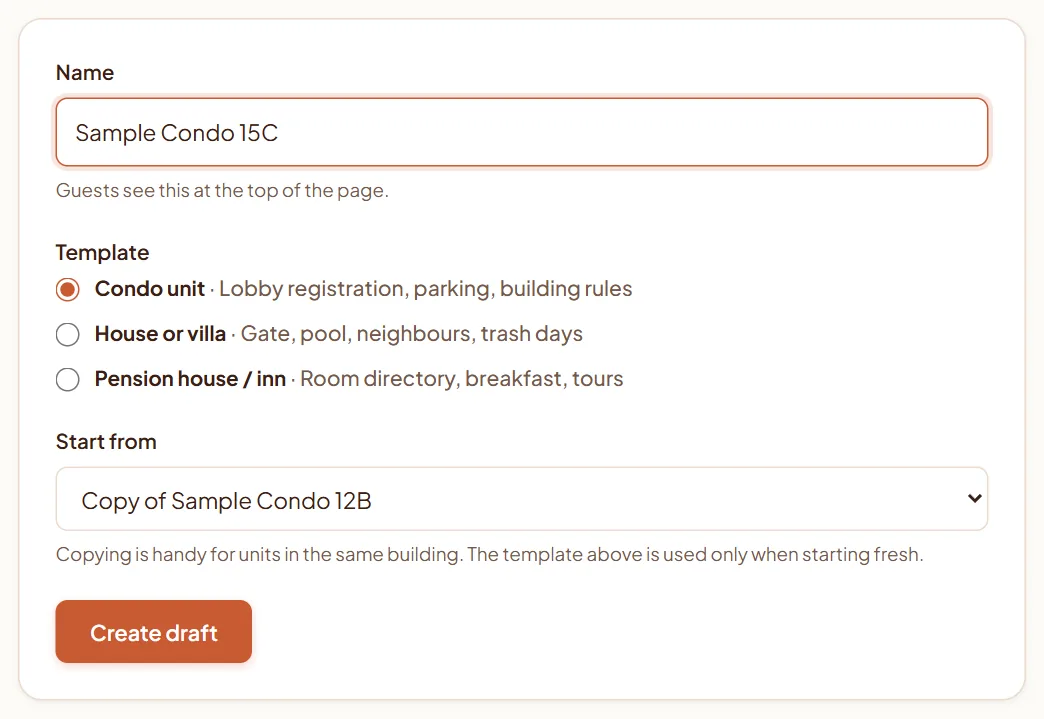
Adding a sample unit as a copy of an existing page.
A new property is always a draft. Nothing goes online until you publish it.
2Copy or start fresh?
Copy when the places are similar. Units in the same building usually share lobby rules, parking and nearby places, so a copy gets you most of the way. The template you selected is ignored when you copy.
Start fresh when the place is different. A beach house has different arrival steps and rules from a city condo, and the starter text in each template is written for its own kind of stay. You could also use Write with AI to build the new page from its own Airbnb listing.
3What to change after copying
A copy brings over the content of every section, so it needs careful checking. Go through this list before you publish:
- Private section: this is the most important one. The copy includes your other unit's lockbox code, door code and Wi-Fi password. Replace all of them.
- Basics: the page name, area, cover photo, and check-in and check-out times.
- Arrival: the tower, floor and unit, and where the lockbox is.
- Wi-Fi & how-tos: the network name, and any appliance that's different.
- House rules: pets, smoking and visitors may differ per unit.
- Emergency: the building's guard or admin numbers, if it's another building.
- Questions & answers: anything that only applies to the original unit.
A section you've hidden on the original stays hidden in the copy, so check those too.
4Set up what isn't copied
Only page sections are copied. These belong to one property, so set them up again. Open Settings on the new property first:
- Maximum guests and Province, so regional typhoon notices reach this page.
- Building and unit, used only in your guest-list email to the admin.
- This is an Airbnb listing, and the Airbnb link for the Message host button.
- Chat assistant: it's off until you turn it on for this property.
Then check the rest:
- Guest services: each property has its own list, under Guest services. Pick the page at the top.
- Stay code: each property has its own. One is created when you publish.
- QR poster: download a new one under QR posters. Each one points to its own page, so make sure the right poster goes in the right unit.
- Stays: add bookings for this property separately.
5Publish, and what it costs
When you're ready, press Publish page. What happens next depends on your plan.
On the Free plan, you can have one live page. Other pages stay as drafts until you upgrade, or unpublish the first. Your drafts are never deleted.
On the Host plan, you pay for each live page: ₱249 a month or ₱2,490 a year. Drafts and archived pages don't count.
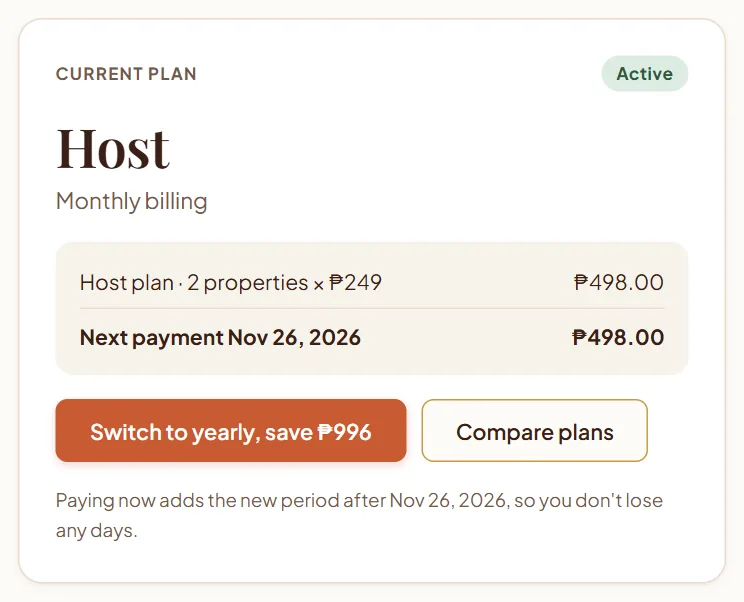
A sample Plan & billing card for two live pages.
You don't pay extra the moment you publish. A page you publish during a paid period is added at your next payment. Plan & billing tells you how many pages have been added since your last payment.
If you pay through PayPal, your subscription doesn't change on its own. PayPal keeps charging for the number of pages it started with until you update it. Plan & billing shows an Update PayPal button when your live pages have gone up.
6Work with several properties
The Properties page shows each one with its status, views, notes and link. You can search by name, or filter to live, draft or archived.
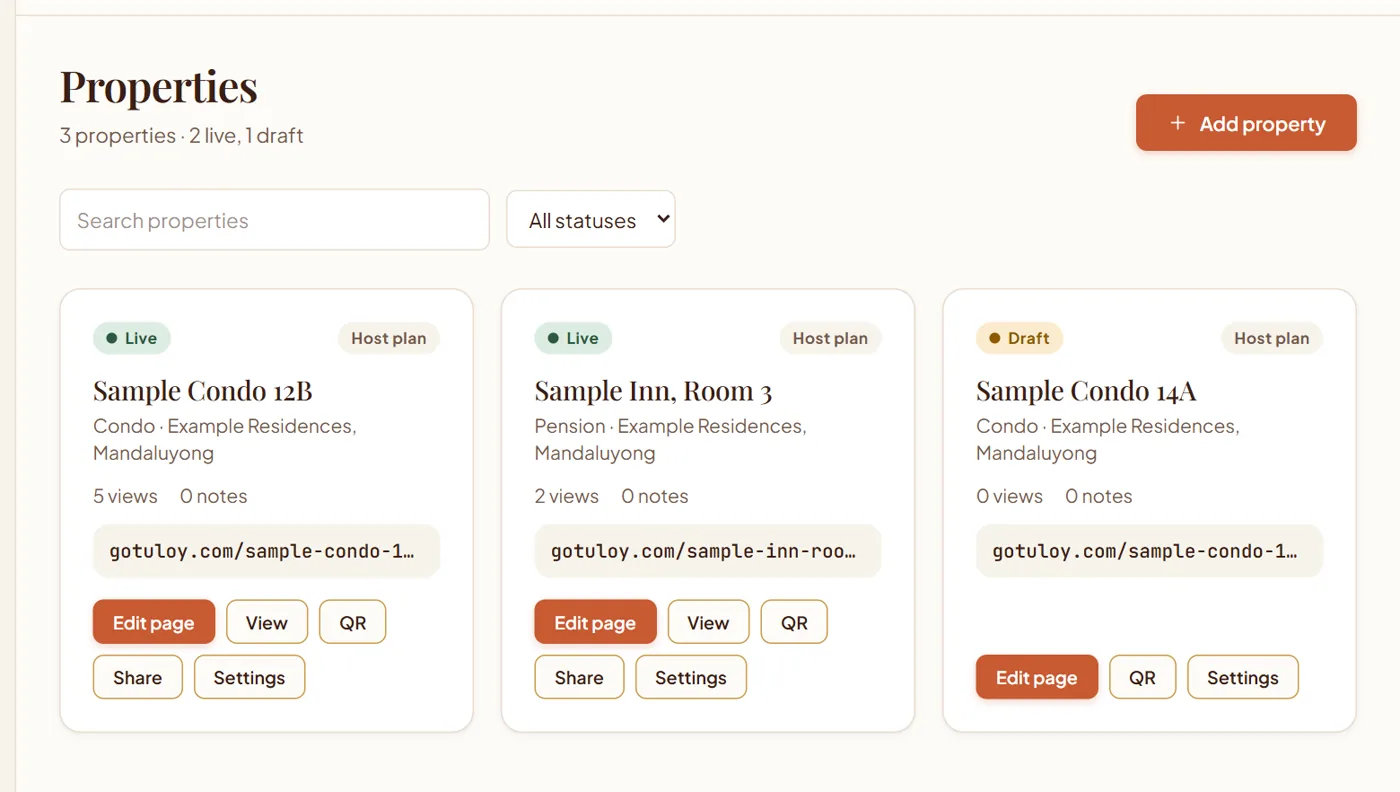
Three sample properties: two live, one draft.
The picker in the top bar sets which property the dashboard and Page editor focus on. Choose All properties to see everything together. Guestbook, Guest questions and Service requests show which property each item came from.
Your AI writing and guest chat allowances also grow with each live page on the Host plan. Two live pages share 400 chat replies a month, and 10 whole-page drafts. They're shared across your account, so a busy unit can use more than a quiet one.
7Taking a page offline
- Unpublish takes a page offline but keeps it as a draft. Guests with the link or QR code see "page not found" until you publish again.
- Archive, under Settings, takes the page offline and hides it from your list. Nothing is deleted, and you can press Restore later.
Either way, the page stops counting as live at your next payment.
Frequently asked questions
Is there a limit on properties?
Not on the Host plan: you pay for what's live. On the Free plan you can create drafts, but only one page can be live at a time.
Can two properties share a page?
Each page has one address and one stay code, so it's best to have one for each unit. If the units are nearly identical, a copy takes only a few minutes.
Do copied pages keep the same link?
No. Each property gets its own address from its name. You can change it under Settings → Page address.
Do photos copy across?
Check the cover image in Basics after copying, and replace it with a photo of the new place.
Can a co-host manage some properties?
Not yet. For now, each account has a single login.
What happens to my extra pages if my plan ends?
Your account moves to Free. Your oldest page stays live and the rest go back to draft. Nothing is deleted, so paying and publishing again brings them back. Pay with GCash and manage your plan has the details.