You already wrote most of your welcome page once, when you wrote your Airbnb listing. Write with AI reads that text and turns it into a first draft of your GoTuloy page: arrival steps, house rules, Wi-Fi and how-tos, nearby places and the check-out list. You check each section, add the ones you like to your draft, and publish when you're happy. This guide walks through every step and explains what the AI will and won't do.
Key takeaways
- Write with AI builds a first draft from your own listing text. It only ever goes into your draft, so guests see nothing until you press Publish changes.
- You review and add the result one section at a time. Add to draft keeps anything you wrote yourself.
- It never writes your Private section or Emergency section, and it never sees your stay code or door codes.
- Numbers, links and emails you didn't give are removed automatically, but plain-word details can still be wrong. Always read the draft.
- The Free plan includes 1 whole-page draft and 20 section requests a month. The Host plan includes 5 and 100 for each live page.
1Before you start
You need a property to work on. If you don't have one yet, create it from a template first (see Set up your first page). The AI works on top of the template, so you don't have to start from an empty page.
Then gather what you'll paste. The more specific your text, the more useful the draft will be:
- Your Airbnb listing description and house rules.
- A list of amenities and appliances: aircon, smart TV, induction stove, water heater.
- The places you actually recommend, by name.
- Anything guests keep asking you, like where to park or how the lobby registration works.
Leave out door codes, lockbox codes, passwords and guest names. Whatever you type goes to our AI provider, Anthropic, to write the draft. Those details belong in your Private section, which the AI never sees. If a code does slip into what you paste, we strip it before sending, but it's better not to paste it at all.
2Generate your first draft
- Open Properties → Edit page for the property you want to work on.
- Find the Write with AI card at the top of the editor and press Open.
- Paste your listing into Your listing description and house rules.
- Fill in Amenities and appliances, Places you recommend and Anything else guests should know. Each box takes up to 6,000 characters. Fill in as much as you can, because the AI only works from what you give it.
- Press Generate with AI.
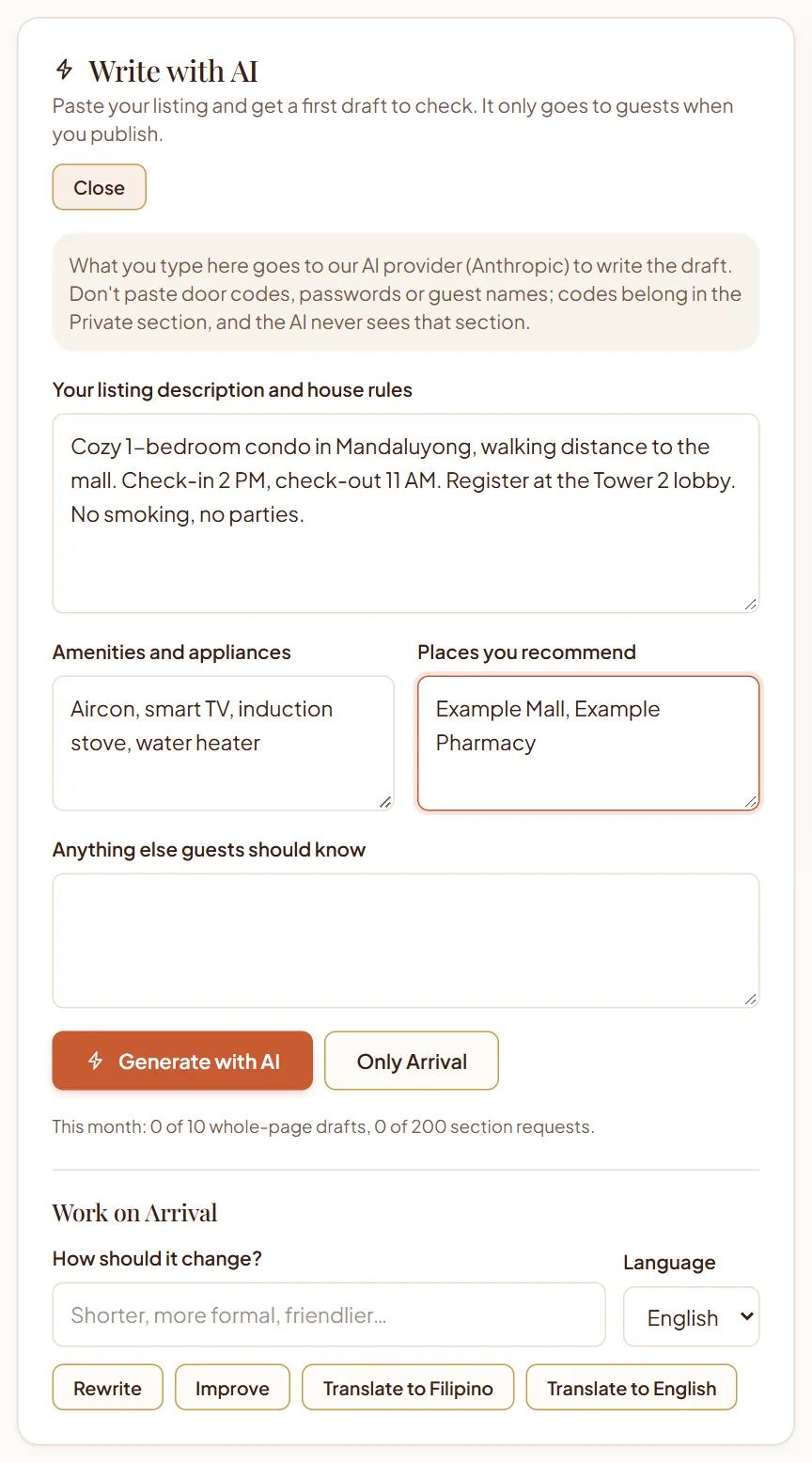
The Write with AI card, filled in with sample text. Your allowance for the month is shown under the buttons.
Writing can take a minute or two. You don't have to wait on that screen: keep editing, or leave and come back. Your finished draft stays under Earlier requests in the same card, where you can press Open to read it again.
Only want one part rewritten from your listing? While you're on a section such as Arrival, press Only Arrival instead. That uses one section request, not a whole-page draft.
3Read what the AI wrote
The result appears as a set of cards, one per section. Nothing has changed on your page yet. At the top you may see two lists that are worth reading first:
- The AI left these out because it didn't know. Add them yourself: questions a guest would ask that your text didn't answer. Treat this as a to-do list.
- We took these out of the draft: sentences our checks removed, usually because they included a number, link or email you never gave.
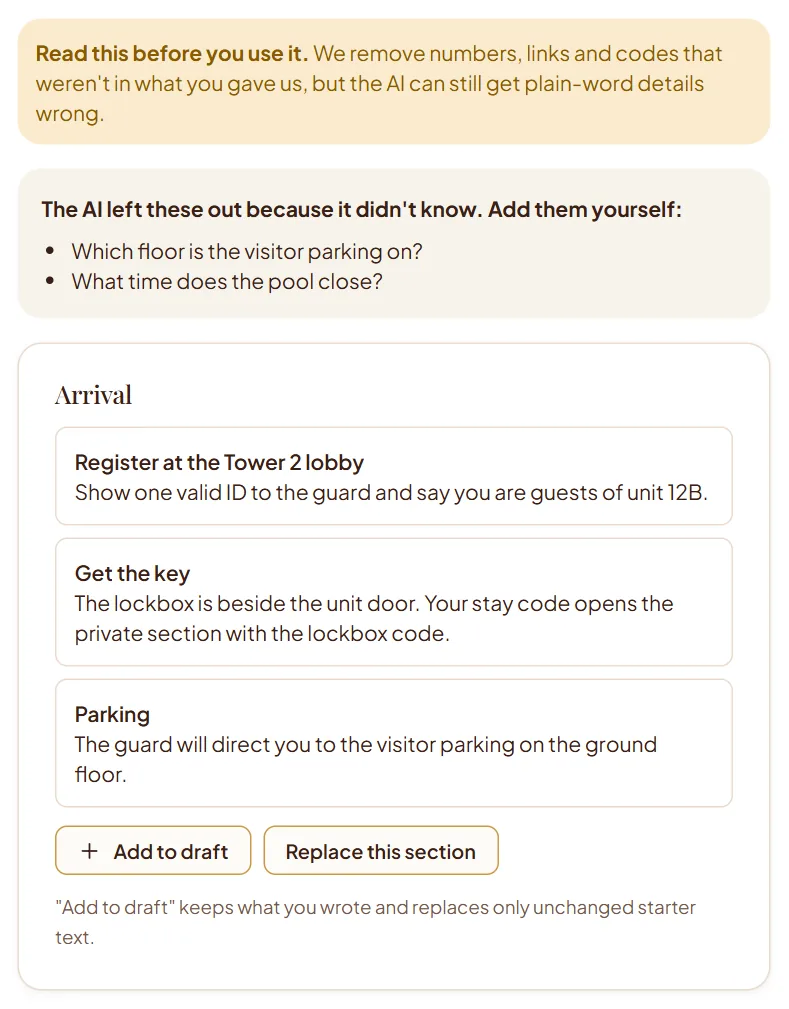
A sample draft for the Arrival section. The list above it shows what the AI didn't know.
Read every line as if you were the guest. Our checks are good at catching invented numbers, links and place names. They can't catch a plain-word mistake, like "the guard will direct you to the visitor parking" when your building has no visitor parking. Only you know that.
4Add it to your draft, one section at a time
Each section has two buttons:
- Add to draft is the safe choice. It keeps what you wrote and only replaces empty fields and template starter text you never touched.
- Replace this section overwrites everything in that section of your draft. You're asked to confirm first, and your published page doesn't change.
Once a section is in your draft, its card shows In your draft. You can skip any section you don't like. The rest of your page stays as it was.
If you edited a section after the AI read it, you'll see a warning before anything is overwritten: You changed this section after the AI read it. Press Overwrite anyway only if you really want to lose those edits.
5Check it, then publish
Open each section in the editor and fix anything that isn't quite right. The sections are ordinary text now, so you can edit them like the rest of your page. Use the live preview beside the editor to see what guests will see. Then deal with the things only you can add:
- Answer the questions the AI listed as missing.
- Replace any remaining [brackets] from the template.
- Add your lockbox code, door code and Wi-Fi password to the Private section yourself.
- Check that your Emergency numbers are correct. The AI doesn't write these.
When a draft contains AI-written text, the bar at the top of the editor asks you to confirm before publishing. Tick I've read it in the preview and the details are right, then press Publish changes.

You confirm you've read the AI-written text before it can go live.
6What the AI can and can't do
Write with AI can write these sections: the welcome message in Basics, Arrival, House rules, Wi-Fi & how-tos, Nearby places and Check-out.
It can't touch your Private section or your Emergency section. Codes and emergency numbers should only ever come from you. It also can't publish anything, and it doesn't change colours, photos or settings.
Our checks then go through its answer before you see it:
- Sentences with numbers, links or emails you didn't give are removed.
- Codes and passwords are removed, even if you typed them.
- Place names, Wi-Fi network names and map links must appear in your own text, or they're removed.
- On Airbnb listings, wording about contacting you outside Airbnb, paying outside Airbnb or leaving reviews elsewhere is removed, so your page stays within Airbnb's rules.
7How the monthly allowance works
Each month you get a number of whole-page drafts and section requests. The month follows Philippine time. You can see what you've used under the buttons in the Write with AI card.
- Free plan: 1 whole-page draft and 20 section requests a month.
- Host plan: 5 whole-page drafts and 100 section requests a month for each live page. Two live pages means 10 and 200.
If a request fails because of a problem on our side or our AI provider's, you get it back. It doesn't count against your allowance.
Frequently asked questions
Will guests see the draft while I'm checking it?
No. The AI only writes to a proposal, and you choose what moves into your draft. Guests see your last published version until you press Publish changes.
Can the AI make up details about my place?
It's told not to, and our checks remove numbers, links, emails and place names that weren't in your text. It can still get plain-word details wrong, which is why you're asked to read everything and confirm before publishing.
Who sees what I paste?
Your text goes to our AI provider, Anthropic, to write the draft. We keep what you typed encrypted and clear it after 90 days. Don't paste codes, passwords or guest names. Our Privacy Notice has the full details.
Can it write in Filipino?
Yes. Once your English text is in the draft, you can translate it section by section. See Improve, rewrite or translate a section with AI. Have someone fluent read the Filipino before you publish.
What if the result isn't useful?
Add more detail and try again, or skip the sections you don't need. Vague listings give vague drafts. A sentence about how lobby registration actually works helps more than a paragraph about how lovely the view is.
Do I have to use it?
Not at all. Every section can be written by hand, and your page works the same either way.