What time is check-out? How do I connect to the Wi-Fi? Where can we eat nearby? Your page already has the answers, but guests don't always scroll to find them, especially at 11 PM. Guest chat puts a small assistant on your page that answers from what you've published, so guests get a reply right away and you get fewer repeat questions. This guide shows you how to turn it on, what guests see, and what the chat can and can't do.
Key takeaways
- Guest chat is part of the Host plan. It's off until you turn it on, one property at a time, in Properties → Settings.
- It answers only from your published page. It never sees your Private section, stay codes, stays, guest names or drafts.
- When your page doesn't answer a question, the chat says so and the question goes to Guest questions, so you can answer it once.
- You choose how long chats are kept: 7, 30 or 90 days.
- Your plan includes 200 replies a month for each live page.
1Before you turn it on
The chat is only as good as your page. A guest asking about parking gets a useful answer only if parking is on your published page. Before switching on the chat, take five minutes to check:
- Arrival covers how to get in, including lobby registration or gate instructions.
- House rules are complete, including quiet hours and visitors.
- Wi-Fi & how-tos names your network and explains the aircon, water heater and TV.
- Nearby places has somewhere to eat, the closest pharmacy and how to get a ride.
- Your latest edits are published. The chat doesn't read your draft.
Also set your Airbnb link for the Message host button in the same settings page. When the chat can't help, it offers guests a button to ask you on Airbnb. Without that link, it can show your urgent number instead, if you've added one.
2Turn on the chat
- Open Properties and press Settings on the property.
- Scroll to Chat assistant.
- Switch on Show the chat on this page.
- Under Keep chats for, choose 7, 30 or 90 days.
- Press Save settings.
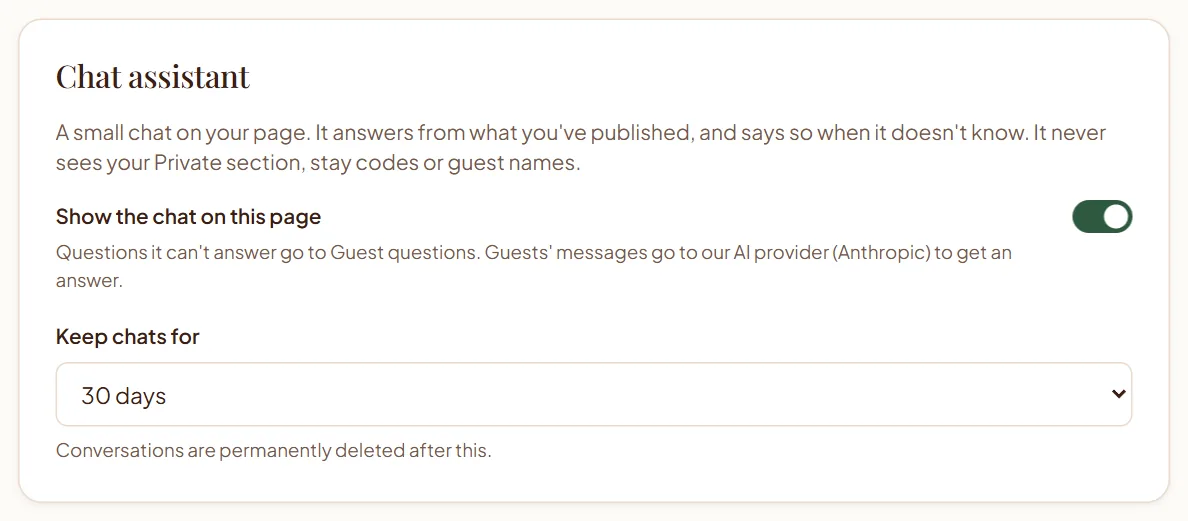
The Chat assistant card in property settings. Each property has its own switch.
You don't need to publish after this. The chat appears on your live page shortly after you save, without changing your link or QR poster. If you're on the Free plan, this card shows a link to the Host plan instead.
3What guests see
A button labelled Ask about this stay floats at the bottom of your page. Tapping it opens a small chat panel with a short notice and a few starter questions, such as How do I check in?. The starters only appear for sections your page actually has.
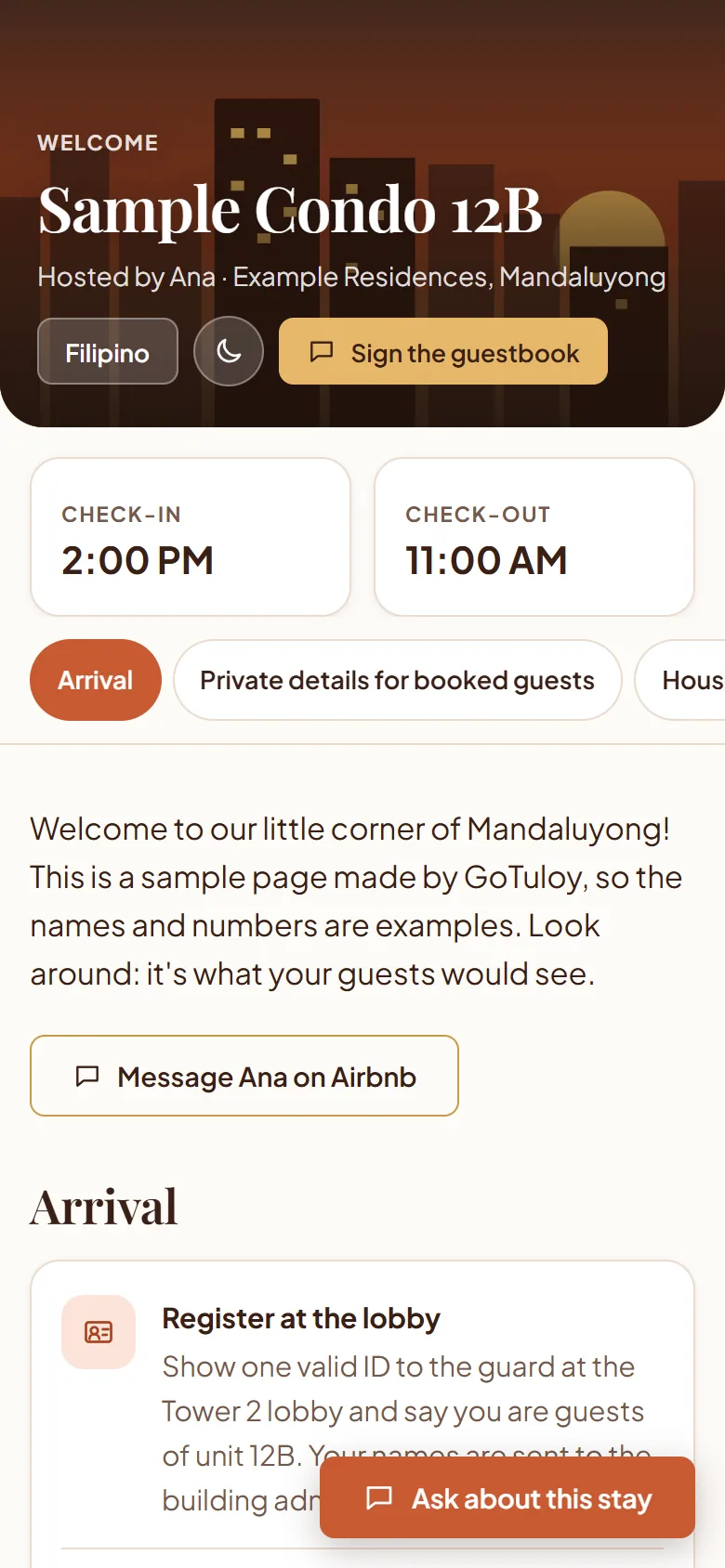
The chat button on a sample guest page.
The guest types a question and sees it right away, with moving dots while the answer is written. The answer usually links to the section it came from, so the guest can read more.
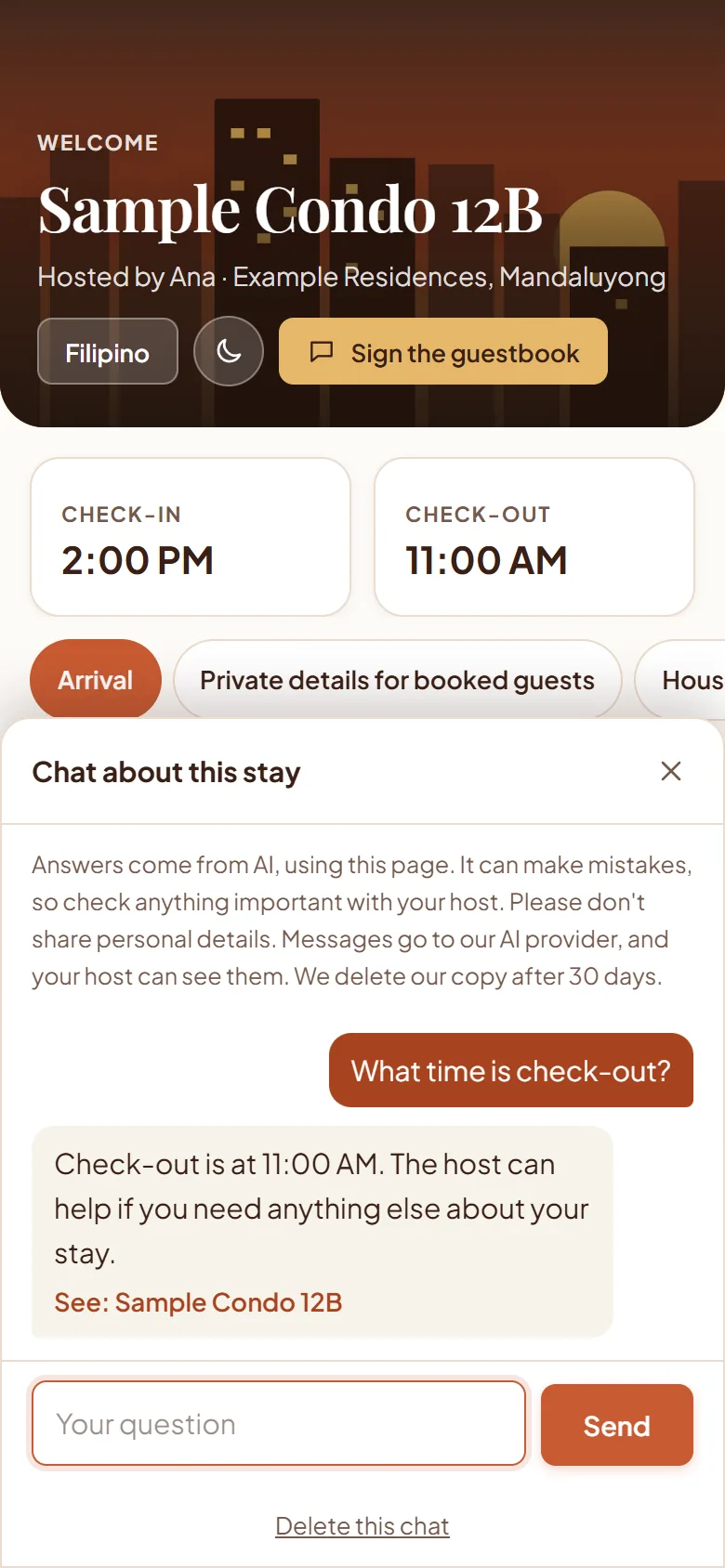
A real answer from the assistant on a sample page.
Guests don't need an account, and they're never asked for an email or phone number. Before they start, the notice explains that answers come from AI, that it can make mistakes, that messages go to our AI provider, that you can see them, and how long they're kept. It also asks guests not to share personal details. A Delete this chat link lets them remove their conversation any time. If you have the Filipino language switch on, the chat follows the language the guest has chosen.
4What the chat can answer
The chat reads only the published sections of your page. So it can tell a guest your check-out time, your quiet hours, your Wi-Fi network name, or which pharmacy you recommend. If you offer guest services, it can tell them what's on your list and the listed price, but it can't take, confirm or change a request. It points them to that section instead.
5What it never sees
Some things never reach the AI at all, so no clever question can get them out of it:
- Your Private section, including the lockbox code and Wi-Fi password.
- Your stay codes.
- Stays, guest names, plate numbers and your unit number.
- Your draft edits and guestbook notes.
Lines still holding template [brackets] are left out too. If a guest asks for the Wi-Fi password, the chat can point them to the private section, where they'd enter their stay code.
Answers also go through the same checks as our AI writing. A sentence with a number or link that isn't on your page gets removed, even if the guest typed it. On Airbnb listings, wording about contacting you or paying outside Airbnb, or leaving reviews elsewhere, is removed as well.
6When it doesn't know
The chat doesn't guess. When your page doesn't cover something, it says so and offers a way to reach you: Ask your host on Airbnb, or your urgent number when there's no Airbnb link. The question then appears under Guest questions in your dashboard, and we send a short daily email with how many are waiting. It tells you the count, not the text, so you read them after logging in.
Answering these is the best way to improve your page. See Turn guest questions into FAQs.
7Limits to know about
- Monthly replies: 200 a month for each live page, shared across your account. Guest questions shows what you've used. If you reach the limit, the chat button is hidden until the next month, and the rest of your page works as usual.
- Per conversation: messages can be up to 500 characters, and a conversation can run for 20 turns.
- Abuse limits: there are also limits per address and per property each day, so one person can't use up your allowance.
If the assistant can't answer for any reason, guests see: The assistant can't answer right now. Your host can still help. Your page itself keeps working.
Frequently asked questions
Does the chat reply as me?
No. It's clearly an assistant, and the notice tells guests that answers come from AI. It doesn't send messages for you in Airbnb, and it doesn't replace your Airbnb chat.
Is it allowed on Airbnb listings?
The chat is built to fit within Airbnb's off-platform rules: it never asks for contact details, doesn't take payments or review requests, and sends guests back to Airbnb to reach you. Guests also never have to use it. Keep important rules in your Airbnb listing too.
Can I read guests' chats?
Questions the assistant couldn't answer appear under Guest questions. Guests are told you can see their messages, which is one more reason the notice asks them not to share personal details.
How do I turn it off?
Go back to Properties → Settings → Chat assistant, switch off Show the chat on this page and press Save settings. The rest of your page stays as it is.
What happens to old chats?
They're permanently deleted after the period you chose. A guest can also press Delete this chat sooner.
What if my plan ends?
The chat only shows on the Host plan. If your account moves to Free, the button disappears from your page.