Every question your chat assistant can't answer is a small gift. It tells you exactly what's missing from your page, in your guest's own words. Answer it once, publish, and the next guest who asks gets the answer straight away. This guide shows you how to work through Guest questions, how answers become part of your page, and how to write ones that really cut down on repeat messages.
Key takeaways
- Guest questions lists what your chat assistant couldn't answer from your published page.
- Type an answer and press Add to my FAQ. It goes into the Questions & answers section of your draft.
- Press Publish changes to show it. After that, guests can read it on your page and the chat can answer from it.
- FAQ answers are public. Never put door codes or passwords in them.
- Questions you don't need can be dismissed.
1Why this matters
A welcome page is never finished on the first day. You can't predict that someone will ask about a rice cooker, or whether the pool towels are provided. With guest questions, you don't have to. Your guests show you where the gaps are, and each answer keeps working for every guest after that.
This only works once the chat is on. If you haven't done that yet, start with Turn on guest chat for your property.
2Find your questions
Open Guest questions in the sidebar. A number beside it shows how many are waiting. We also send one short email a day if new ones have arrived. That email gives the count only, not what guests asked, so you read them after logging in.
Each question shows the guest's words, which property it came from, and when it was asked. At the top of the page you can also see how many chat replies you've used this month.
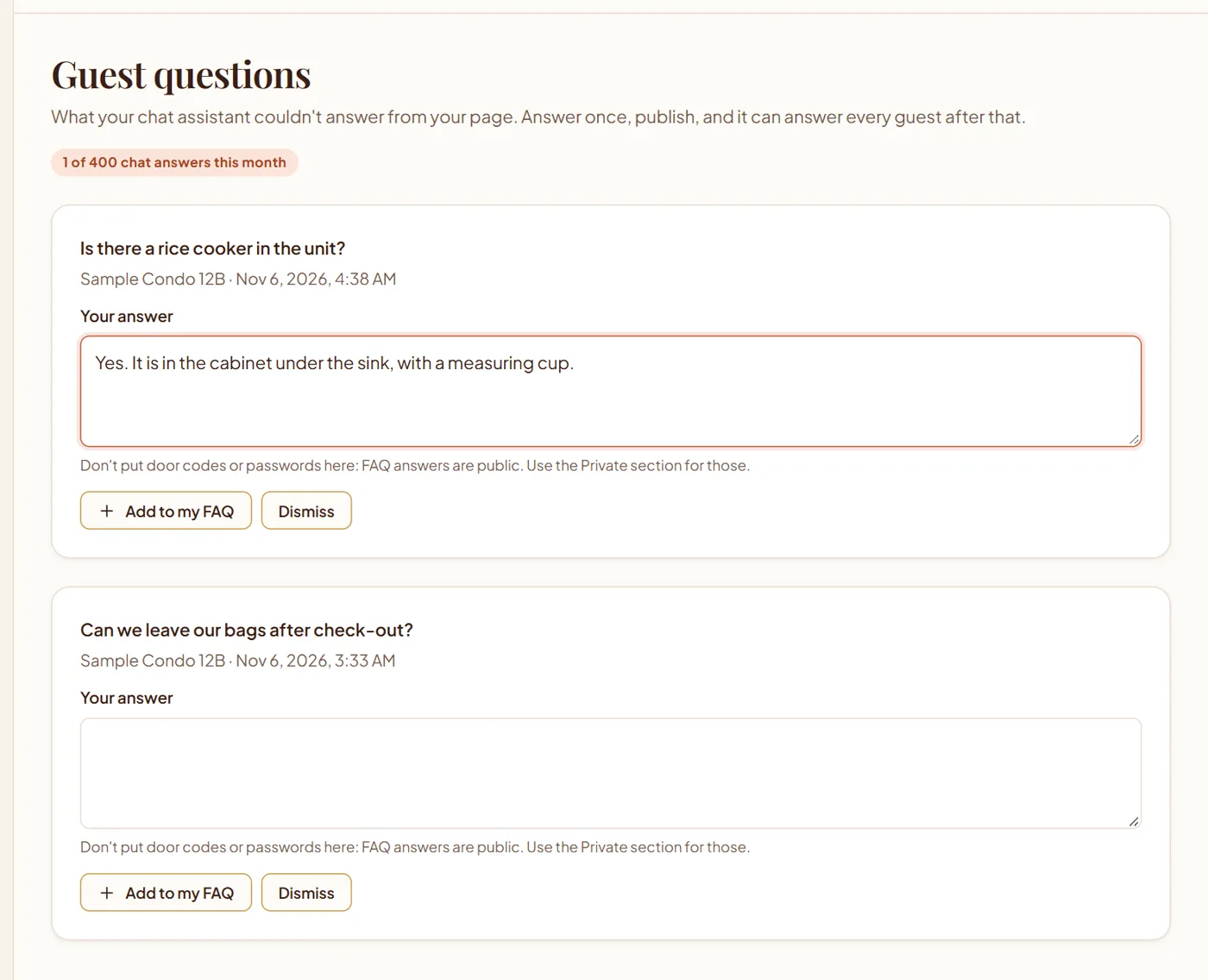
Guest questions from a sample property. Each one has its own answer box.
3Answer a question
- Read the question and decide whether it deserves a permanent answer.
- Type your answer in Your answer, up to 600 characters.
- Press Add to my FAQ.
The question leaves the list and joins the Questions & answers section of your draft, with the guest's wording as the question.
Your answer doesn't reach the guest who asked. It's for your page and future guests. If someone is waiting on an answer right now, reply to them directly in your Airbnb chat as well.
4Tidy it up in the editor
Guests don't always write neat questions, and a quick edit helps the next person. Open Properties → Edit page and click the Questions & answers tab.
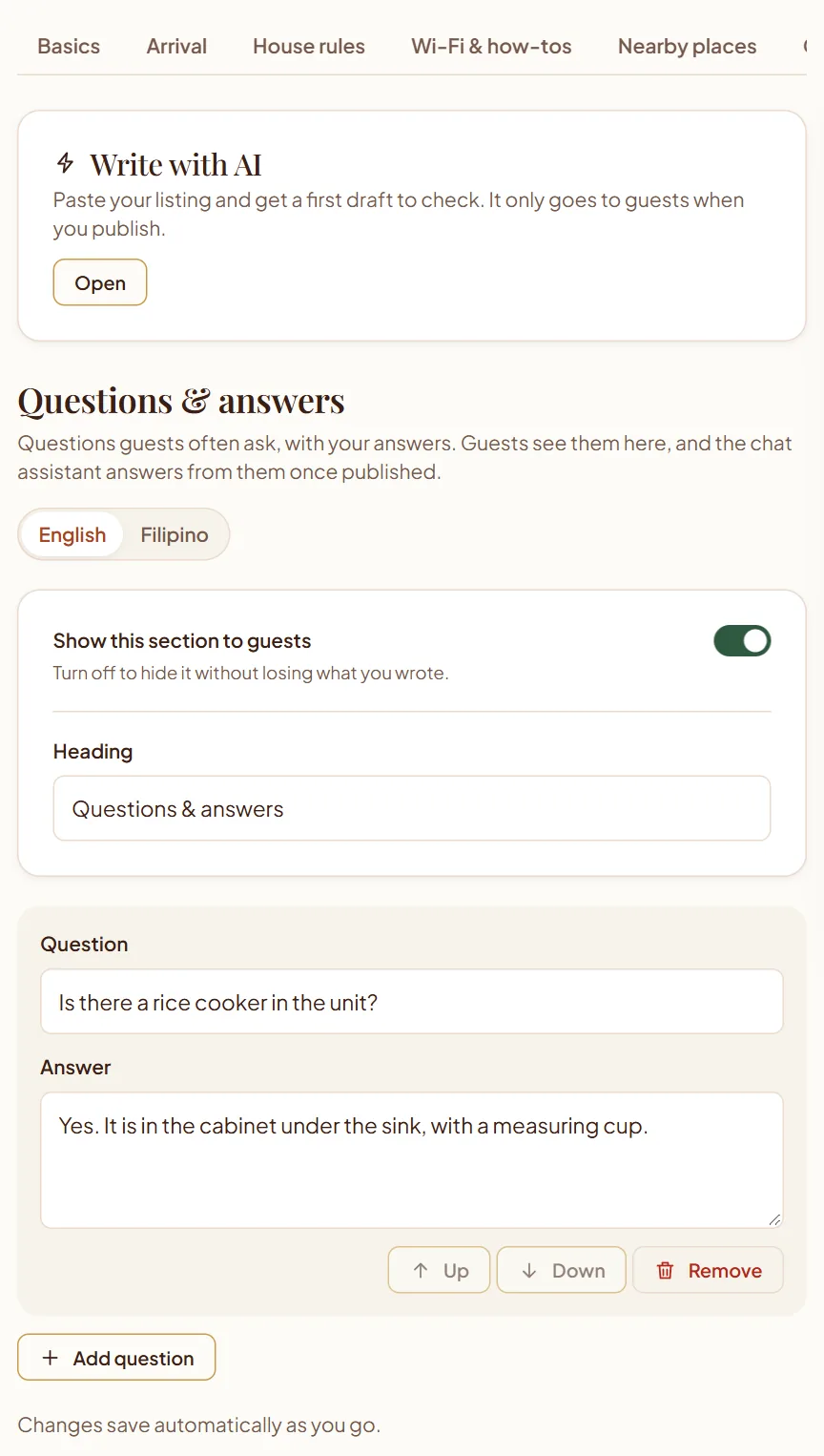
The answer in the Questions & answers section of the draft. You can edit, reorder or remove it.
Here you can:
- Reword the question so it's clear, and fix spelling. Guests' words are a good start, not a requirement.
- Use Up and Down to put the most useful questions first.
- Press Remove on anything that's out of date.
- Press Add question to add one of your own. If guests ask you the same thing on Airbnb, add it here, even if the chat never heard it.
- Switch to the Filipino tab to add a translation. Anything left empty shows in English.
The section holds up to 15 questions. If it's full, Add to my FAQ asks you to remove one first. That limit is useful: a shorter list gets read.
5Publish it
Like every edit, your new answer stays in the draft until you press Publish changes. It's easy to forget this step, so make it a habit when you finish a batch of questions. Once it's published:
- Guests see it in the Questions & answers section of your page.
- The chat can use it to answer the next guest who asks.
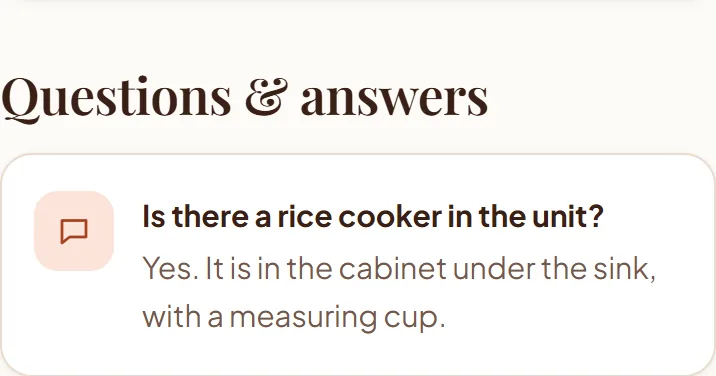
The published answer on a sample guest page.
6When to dismiss a question
Not every question belongs on your page. Press Dismiss to clear it from the list when:
- It was about one guest's situation, like "Can you extend our booking?". Handle that through Airbnb.
- It was nonsense, a test, or something unrelated to the stay.
- Your page already answers it clearly, and the guest simply phrased it in an unusual way.
- It would be better placed in another section. Add the information there yourself, and then dismiss the question.
7FAQ or another section?
Before you press Add to my FAQ, ask where a guest would look. Sometimes a question shows that another section is missing something:
- A question about parking probably belongs in Arrival.
- A question about the washing machine fits Wi-Fi & how-tos.
- A question about whether visitors can stay over belongs in House rules, and in your Airbnb listing.
- A question that doesn't fit anywhere else, like whether there's a rice cooker, is perfect for the FAQ.
The chat reads every published section, so it will find the answer wherever you put it.
8Write answers that work
- Start with the answer. "Yes, it's in the cabinet under the sink" is better than a long explanation.
- Be specific. Say which cabinet, which floor or what time. Vague answers lead to a follow-up message.
- Keep the facts true for every guest. Avoid "tomorrow" and "this week". For a temporary notice, use an advisory banner instead.
- Leave out anything private. Answers are public. Don't include door codes, lockbox codes, passwords, or your unit's exact access details. Those belong in the Private section.
- Stay within Airbnb's rules. On an Airbnb listing, don't ask guests to contact or pay you outside Airbnb.
9A simple weekly routine
When the daily email says questions are waiting, this takes about five minutes:
- Open Guest questions.
- Dismiss what you don't need.
- Answer the rest, in the FAQ or the section where they belong.
- Reorder the FAQ so the most common question is on top.
- Press Publish changes.
After a few weeks, you should see fewer new questions, because your page has caught up with what your guests really want to know.
Frequently asked questions
Does the guest who asked get my answer?
No. GoTuloy doesn't collect guests' contact details, so there's no way to notify them. The answer helps the next guest. If someone needs a reply now, use your Airbnb chat.
Why doesn't the chat use my answer yet?
You probably haven't published it. The chat only reads your published page, so press Publish changes first.
Can AI write my FAQ answers?
No. You write these yourself, so they're always your own facts. The AI writing tools don't work on this section.
Do questions get deleted?
Yes. Chats are deleted after the period you chose in settings: 7, 30 or 90 days. Any answer you've added to your FAQ stays on your page, because it's now your own text.
Can guests see questions I haven't answered?
No. Only you can see them, after logging in. Guests only see what you publish.
Can I use the FAQ without the chat?
Yes. Questions & answers is an ordinary section of your page. Add questions by hand and publish, even if the chat is off.