Anyone with your page link can read your house rules and nearby places. That's the point of a public page, and it's safe as long as your door code isn't on it. The Private section is where those details belong. Guests only see it after they enter a stay code you sent them. This guide explains what to put there, when to change the code, and how to change it without leaving your next guest locked out.
Key takeaways
- Put your lockbox code, door code and Wi-Fi password in the Private section, never in any public section or FAQ.
- Guests enter a 6-character stay code to see it. Their phone remembers it, even offline at the door.
- Your stay code can change only when you say, every month, or after every check-out.
- Changing the stay code doesn't change your real lockbox or door code. You still do that yourself.
- When the code changes, guests using the old one are locked out, so always send your next guest the current code.
1Public or private: where does each detail go?
A simple test: would you be comfortable with this detail being on a poster in the lobby? If not, it's private.
Put these in the Private section:
- Lockbox code and where to find the lockbox.
- Door, gate or keypad codes.
- Wi-Fi password.
- Your unit's exact access steps, if they'd help a stranger get in.
These are fine on the public page:
- Your Wi-Fi network name.
- Check-in and check-out times.
- House rules, how the appliances work and places nearby.
- How to register at the lobby, without the code.
The same goes for Questions & answers. FAQ answers are public, so never put a code there. Your page checks for you too: AI writing and the guest chat never read your Private section.
2Add your door details
- Open Properties → Edit page and click the Private section tab.
- Add an item for each detail, like Lockbox or Wi-Fi password. Say where it is as well as what it is: "On the pipe to the left of the door. Please scramble the dial after use."
- Press Publish changes.
You write this section by hand. The AI doesn't write it and can't see it. That's deliberate: a code should only ever come from you.
3Find your stay code
The Stay code card is on the same Private section tab in the editor. Your first code is created when you publish, or you can make one with Create a code.
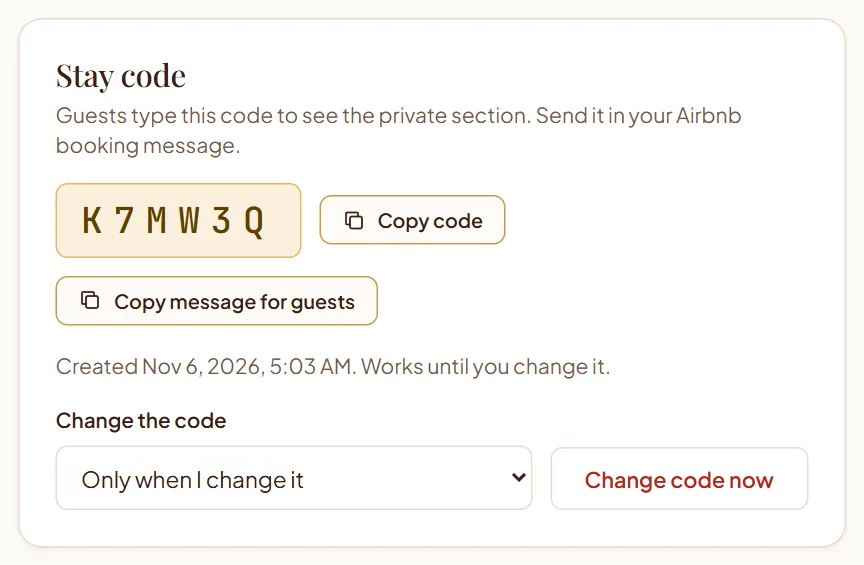
The Stay code card, with a sample code. You can see and copy it whenever you need it.
Codes have 6 characters and leave out look-alikes such as 0 and O, or 1, I and L, so guests are less likely to mistype them. Press Copy code for the code alone, or Copy message for guests for a short note with your page link and code.
4What your guest sees
On your page, the section shows a lock and a box for the code. It doesn't reveal any of the details underneath.
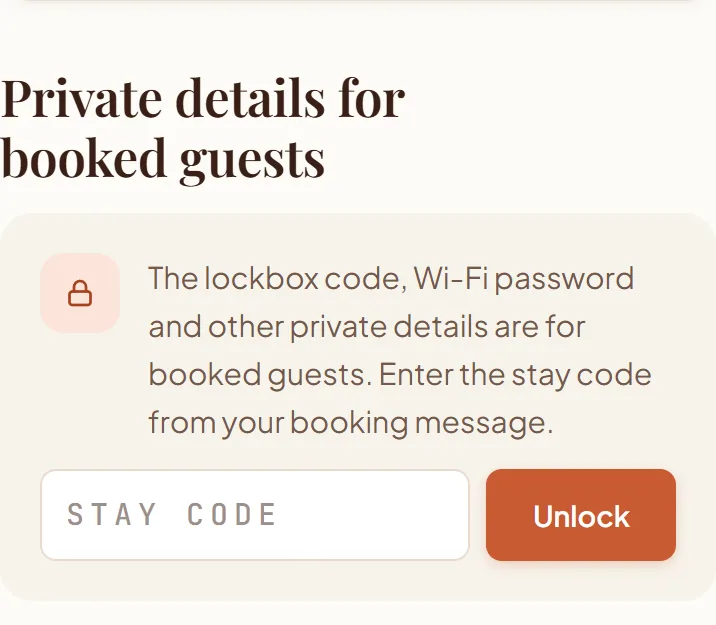
Before entering the code, guests see only this.
After the correct code, the details appear. The phone remembers the unlock until the code changes, and keeps a copy on the device. So a guest who unlocked it at home can still read the lockbox code at your door, even with no signal in the lobby.
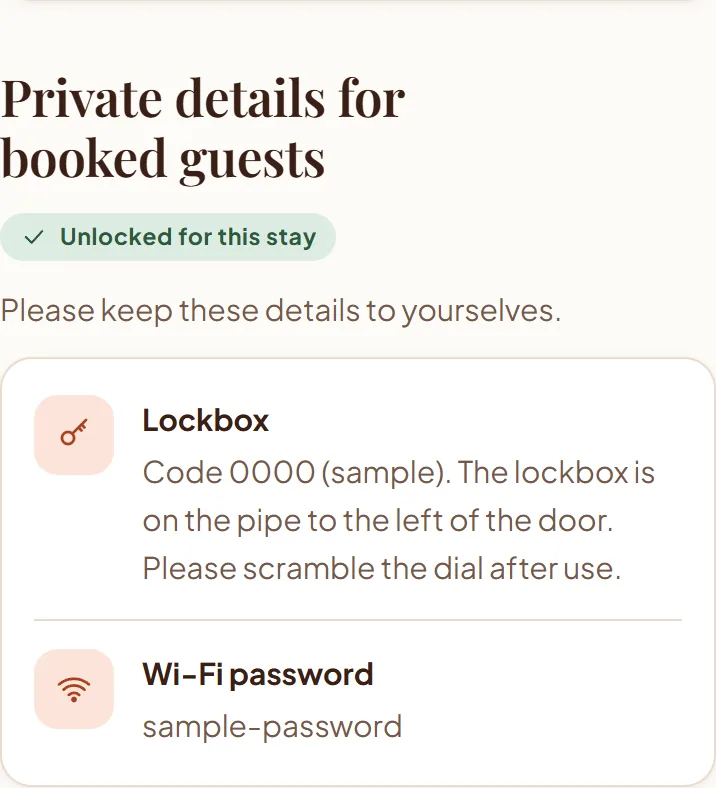
After unlocking, with sample details. Encourage guests to open it before they arrive.
Guessing doesn't work: after 5 wrong tries in 10 minutes, that connection is locked out of the code box for 15 minutes.
5Choose when the code changes
Under Change the code, pick one of three options:
- Only when I change it: the code stays until you press Change code now. It's the simplest, and fine if you change it yourself between guests.
- Every month: a new code is made each month automatically. A good balance for hosts who get steady bookings.
- After every check-out (uses your Stays): a new code is made once each stay's check-out time passes. This is the tightest option, but it depends on you adding bookings under Stays.
Whichever you pick, check the card before messaging a guest. It shows when the current code was created and how long it works.
6Change the code without locking anyone out
When the stay code changes, anyone using the old one has to enter the new one, and the copy saved on their phone is removed. That's what you want after a guest leaves. It's not what you want while someone's still staying. A few habits avoid trouble:
- Change it between stays, not during one. If you must change it during a stay, send the guest the new code right away.
- Send your code close to arrival. If your code changes after every check-out, a code sent weeks in advance may no longer work. Send it after the previous guest has left, or re-send it the day before arrival.
- Use a scheduled message on Airbnb, but remember it won't update by itself. Automatic codes work best when you can copy the current one by hand.
- Keep Stays up to date if you use after-check-out mode. Without a stay added, no check-out happens and the code doesn't change.
7Don't forget your real locks
This is the most important point in this guide. Your stay code protects the page, not the door. GoTuloy doesn't connect to your lockbox or smart lock. Changing your stay code doesn't change what opens your door.
So a past guest can't read your Private section any more, but they might still remember the lockbox code. Change your physical code between guests as often as you normally would. When you do, update the Private section and press Publish changes. A good turnover routine looks like this:
- The guest checks out.
- Your cleaner or you change the lockbox or door code.
- Update the Private section with the new code, and publish.
- Check the stay code, and send it to your next guest.
8If a guest can't unlock
- "The code doesn't work." It probably changed. Check the card and send the current one.
- They've tried too many times. They're locked out for 15 minutes on that connection. In the meantime, you can share what they need through your Airbnb chat.
- They have no signal at the door. If they unlocked earlier, it's saved on their phone. If not, they'll need signal once. That's why it helps to ask guests to open the page before they travel.
Your guest page is optional. Guests should never need GoTuloy to get in, so make sure they can also get their check-in details from you through Airbnb.
Frequently asked questions
Can the chat assistant reveal my codes?
No. The Private section and stay codes never reach the AI, so it has nothing to reveal.
Do I need to publish after changing the stay code?
No. A new stay code works straight away. You do need to publish after editing the details inside the Private section.
Is each property's code different?
Yes. Each property has its own stay code and its own setting for when it changes.
Can I choose my own code?
Codes are generated for you, so they're hard to guess and easy to type.
Where do I send the code?
On Airbnb, send it in your Airbnb chat, or use the ready-made messages described in Share your page on Messenger, Viber and Airbnb.
What if I suspect a code has leaked?
Press Change code now for the stay code, change your physical lock code too, update the Private section and publish. Then send the new stay code to anyone currently booked.