The lobby moved its registration desk, the water heater was replaced, or your favourite carinderia closed. Your page should keep up, but you don't want a half-finished edit to confuse a guest who's arriving tonight. That's why GoTuloy separates what you're working on from what guests see. This guide explains how drafts and publishing work, which changes go live at once, and why your link and printed QR posters keep working through all of it.
Key takeaways
- Your edits save automatically to a draft. Guests only see them after you press Publish changes.
- Your page address stays the same with every publish, so links and QR posters never need updating.
- Advisory banners, guest services, guestbook approvals and new stay codes go live at once, without publishing.
- If you change your page address, the old one keeps working. Unpublishing is the one thing that makes old links stop working.
- There's no undo for a publish, so check the preview first.
1Draft and published: two versions of your page
Think of your page as having two copies. The draft is your working copy, and the published version is what guests see. Everything you type in the editor goes to the draft, and it saves by itself as you go. You can edit a little today, close your laptop and finish tomorrow. Guests won't see anything until you say so.
The bar at the top of the editor tells you where things stand:
- Unpublished changes: your draft is different from what guests see.
- All changes published: they match.
- Not published yet: this page has never gone live.
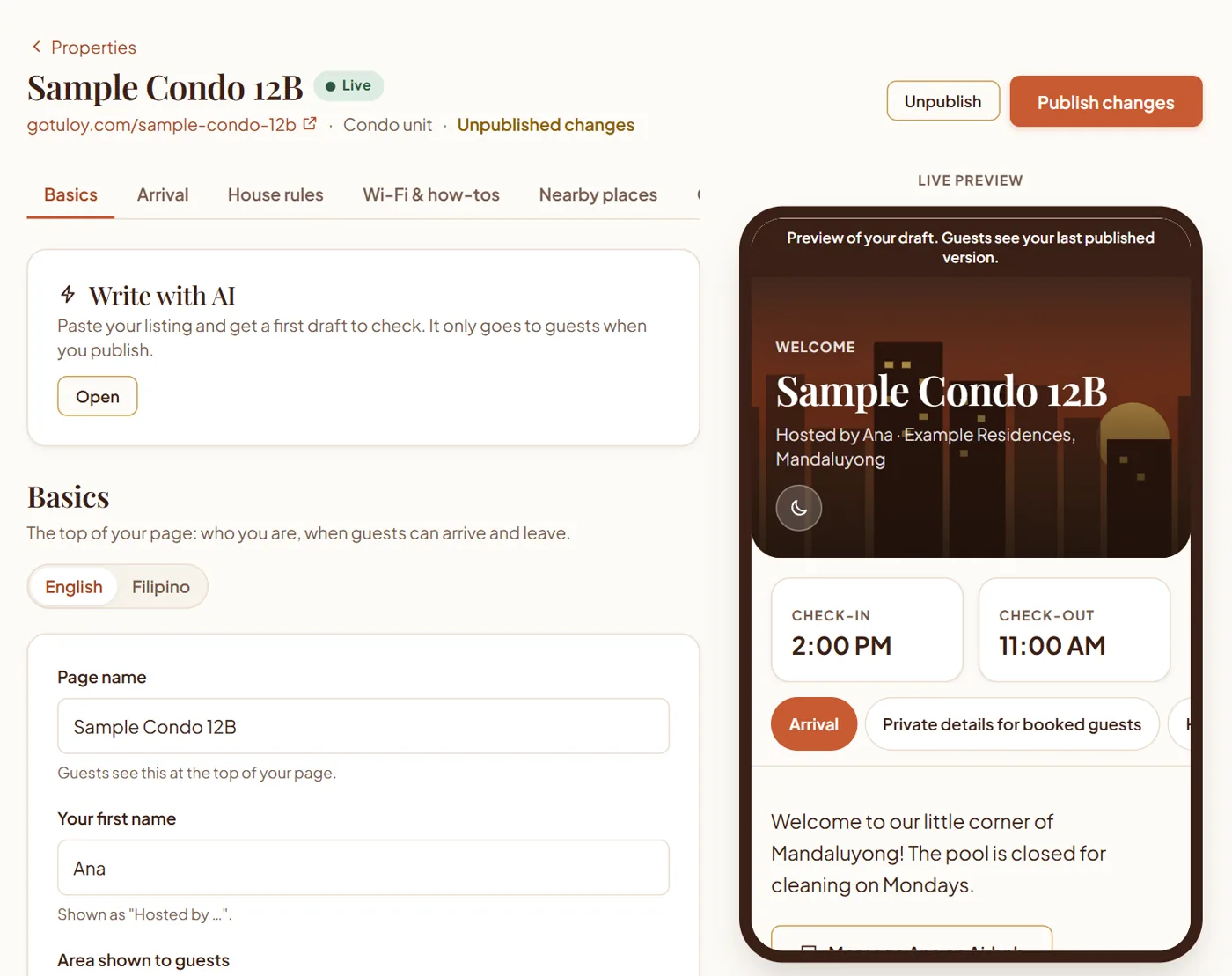
An edited welcome message on a sample page. The phone preview shows the draft, and guests still see the old text.
2Make a change, step by step
- Open Properties → Edit page and click the tab of the section you want.
- Make your change. Watch the Live preview beside the editor, which updates as you type. On a smaller screen, use Open the preview.
- Check that the bar shows Unpublished changes.
- If you see a warning about [brackets], fill those in first. Guests shouldn't see "[tower]" on your page.
- If your draft has AI-written text, read it and tick the box to confirm.
- Press Publish changes.
Guests get the new version the next time they open or reload your page. The preview shows a notice at the top reminding you that it's your draft, not what guests see.
3Changes that go live at once
Some things don't wait for publishing, because they're time-sensitive or because they aren't page text:
- Advisory banners: a typhoon or water notice shows straight away, and ends on the date you set. See Post an advisory banner.
- Guest services: adding, pausing or changing a service shows right away.
- Guestbook notes: a note appears when you approve it, and disappears when you hide it.
- Stay codes: a new code works immediately, and the old one stops working.
So if the water's off this afternoon, don't edit your page and publish. Post a banner. It's quicker, and it goes away by itself.
4Why your link and QR poster never break
Your QR poster points to your page's address, not to a particular version. Publish a hundred times and the same poster opens the latest page, so there's nothing to reprint.
You can even change the address. Open Settings on the property and edit Page address. The old address keeps working, so printed codes and links you've already sent still reach your page.
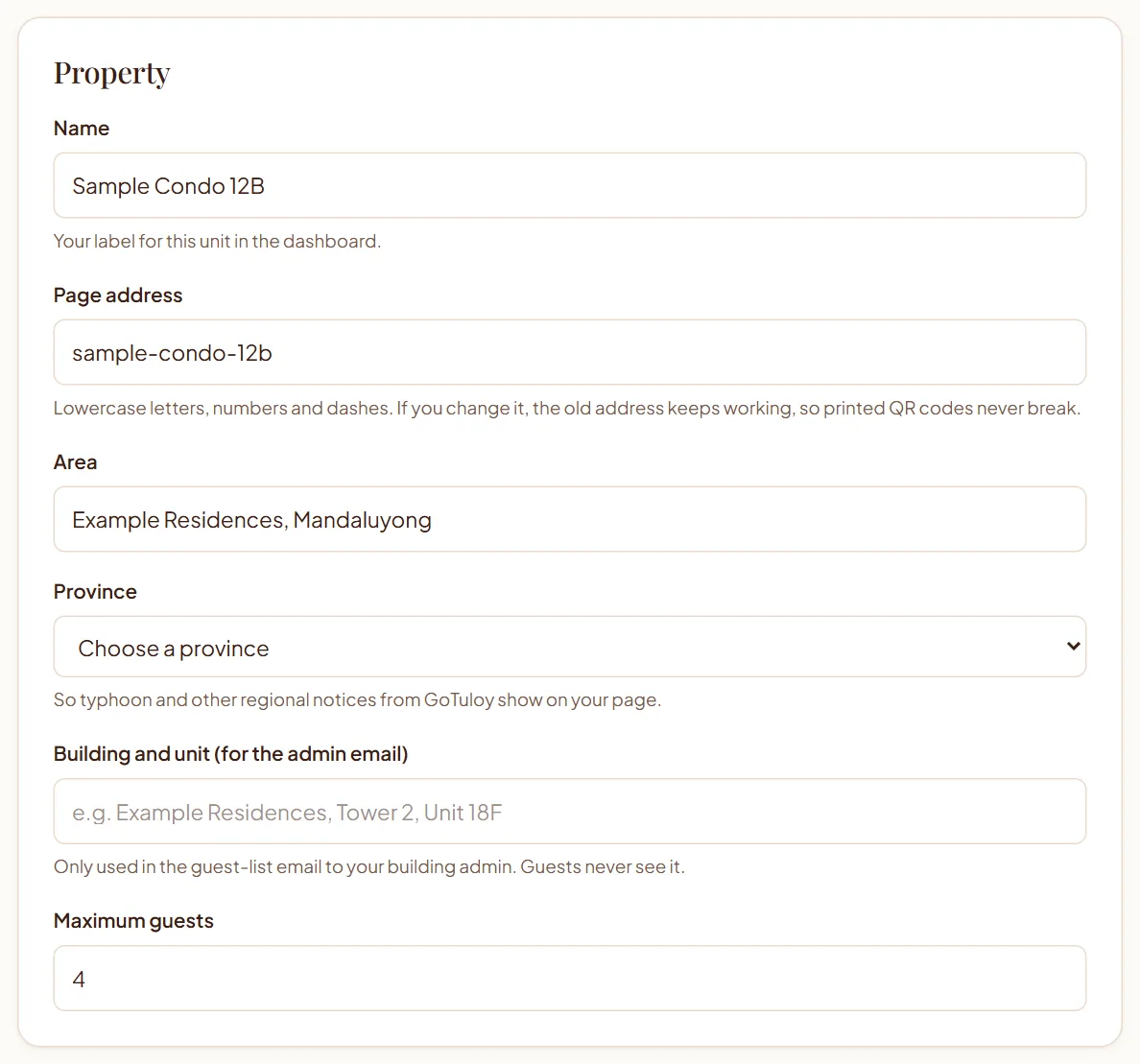
The Property card. The hint under Page address explains that old addresses keep working.
Renaming the property under Name doesn't change the address.
5Guests who are already staying
Your page works offline, because phones keep a copy of it, and you might wonder if guests will be stuck with an old one. They won't. When they open your page with a connection, they get the latest published version. If they're offline, they'll see the last version they loaded until they're back online.
For that reason, a change that matters right now needs more than a publish:
- Post an advisory banner for anything time-sensitive.
- Message guests who are mid-stay through Airbnb, or your usual chat for direct bookings.
- Don't rely on them noticing an edited line.
6Guest chat follows what you publish
If you use guest chat, it answers from your published page, not your draft. So if you've fixed your check-out time in the draft but haven't published, the chat still gives the old time. That's one more reason not to leave important fixes unpublished for long.
7Unpublish and archive: use with care
These two buttons do take your page away from guests:
- Unpublish, in the editor bar, takes the page offline. Anyone with the link or QR code sees "page not found" until you publish again. You're asked to confirm first.
- Archive, in Settings, also takes it offline and hides it from your list. Nothing is deleted, and Restore brings it back as a draft.
Don't unpublish just to make edits. Your edits are already invisible until you publish, so your page can stay live the whole time.
8Before you press Publish: a quick checklist
- Is every time and date right? Check-in, check-out, quiet hours.
- Do the codes live only in the Private section?
- If you changed a physical lock, did you update the Private section too?
- Did you update both languages? An edit in English doesn't change your Filipino text. An outdated Filipino line would still show to guests using that language.
- Do important changes match your Airbnb listing? Your listing is where guests agree to rules, so update it too.
- Have you opened the preview on a phone-sized screen?
9Keep your page fresh with little effort
You don't need a big review. Small habits keep it accurate:
- Fix it the moment you notice. A guest tells you the pharmacy moved? Open the editor on your phone, change it and publish.
- Check your stats. Your page stats show which sections guests read most. Those deserve the most attention.
- Read Guest questions. If you use the chat, they show you what's missing.
- Do a quick check before busy seasons, like Holy Week or Christmas, when buildings often change their rules.
Frequently asked questions
Can I go back to an earlier version?
Not in the dashboard. There's no undo or version history for you to restore from, so if you publish a mistake, fix it in the editor and publish again. It only takes a moment. If you're making a big rewrite, copy the old text somewhere first.
Can I throw away my draft and start over?
There's no discard button. Edit the sections back to what you want, and compare them with your live page in another tab.
Does publishing change my stay code?
No. Publishing only creates your first code if you don't have one. After that, the code follows the setting you chose on the Private section tab.
Does publishing cost anything?
Republishing a page that's already live doesn't change your bill. A new page going live counts at your next payment on the Host plan.
Why don't I see my change on my phone?
First, check the editor says All changes published. Then reload the page on your phone. If your phone was offline, it shows the last copy it saved until it reconnects.
Do my changes need Airbnb's approval?
No. Your GoTuloy page is separate from your listing. But keep your listing up to date too, especially for rules and building requirements.