Your page is written, but one section reads a bit stiff. Your check-out list is too long. Half your guests would prefer Filipino. You don't need to start over: Write with AI can work on one section at a time and show you the new text beside the old, so you decide what to keep. This guide covers the three section tools, Improve, Rewrite and Translate, and how to use their results safely.
Key takeaways
- Open a section in the editor, then use the Work on panel in the Write with AI card.
- Improve tidies the wording. Rewrite follows your instruction, such as "shorter". Translate converts between English and Filipino.
- Every result is a proposal. Nothing changes until you press a button to use it, and guests see nothing until you publish.
- Private and Emergency sections can't be reworked by AI. Codes and emergency numbers should only come from you.
- Have someone fluent read AI Filipino before guests do.
1Find the Work on panel
- Open Properties → Edit page.
- Click the tab of the section you want to work on, such as House rules.
- In the Write with AI card at the top, press Open.
- Scroll to the panel called Work on House rules. Its name changes with the section you're on.
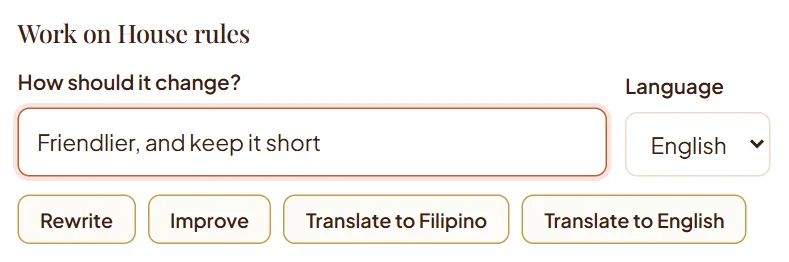
The Work on panel, here for House rules. Type an instruction only when you press Rewrite.
These sections can be reworked: Basics (just the welcome message), Arrival, House rules, Wi-Fi & how-tos, Nearby places and Check-out. On other sections you'll see a note that the AI doesn't write them.
2Which tool should I use?
Improve
Use Improve when your facts are right but the writing could be clearer. It needs no instruction: press the button and it tidies what's there. It's a good first step for text you typed quickly on your phone.
Rewrite
Use Rewrite when you want a specific change. Type what you want in How should it change?, up to 300 characters, then press the button. Short, concrete instructions work best:
- "Shorter. Three sentences at most."
- "Friendlier, but keep the quiet hours firm."
- "Simple English for guests who don't speak it often."
- "Put the most important step first."
The instruction changes the style and the order. It isn't a way to add new facts. If you want to add a detail, type it into the section yourself, or give it to the AI in the listing boxes above.
Translate
Use Translate to Filipino or Translate to English to fill the other language of that section. The result goes into the matching language boxes, so your original text stays where it is.
3Choose the language to work in
The Language menu beside the instruction box decides which version Improve and Rewrite work on: English or Filipino. If you've already written both, you can polish each one separately. The translate buttons don't use this menu, because they already name the language they translate into.
4Read the result beside your text
After a short wait, the proposal opens in the same card. As with a whole-page draft, it starts with a reminder: Read this before you use it. Our checks remove numbers, links and codes that weren't in your text, but a plain-word detail can still come out wrong. Where a field changes, you'll also see the current text labelled Now, so you can compare.
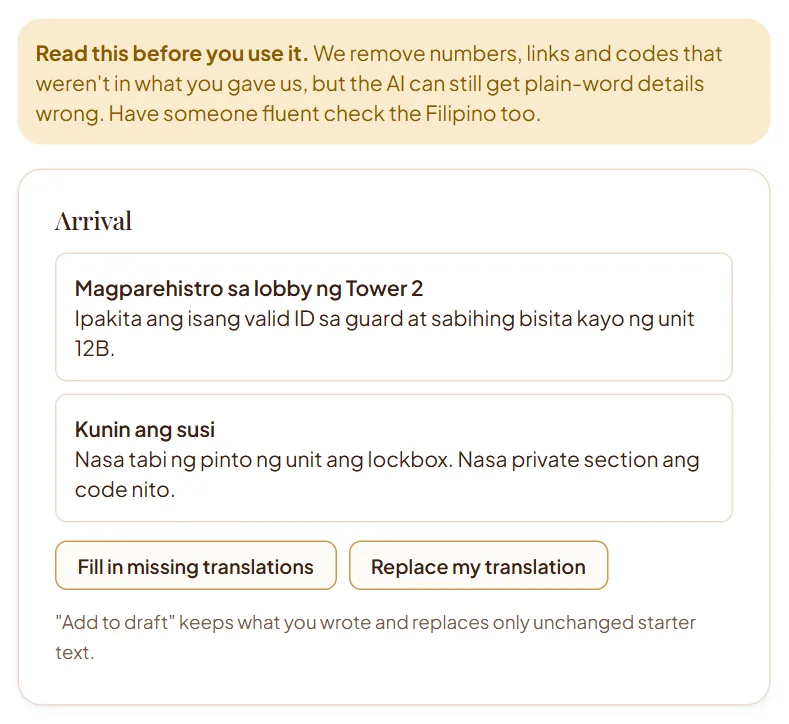
A sample Filipino translation of the Arrival section, waiting for you to choose how to use it.
5Use the result
The buttons depend on what you asked for.
- After Improve or Rewrite, press Use this text to put it into your draft.
- After Translate, press Fill in missing translations to add only what's still empty. Press Replace my translation to overwrite a translation you already have. You're asked to confirm first.
Not convinced? Press Close this draft and your section stays as it was. You can still reopen the proposal later from Earlier requests, where any you've used are marked Used.
If you edited that section after the AI read it, a warning appears: You changed this section after the AI read it. That protects you from losing your newest edits to an older proposal. Press Overwrite anyway only if the proposal really is better, or close it and run the tool again on your latest text.
6Publish your changes
Everything so far has only touched your draft. To show guests the new text:
- Check the section in the live preview beside the editor. Switch languages in the preview if you translated it.
- Tick the box confirming you've read the AI-written text.
- Press Publish changes.
Your link and QR poster stay the same. If you've translated your page, make sure guests can reach it: in Basics, switch on Show the Filipino language switch. Any item you haven't translated still shows in English, so you can translate one section at a time.
7Getting good Filipino
AI translation is a helpful start, not a finished text. The proposal says this itself: Have someone fluent check the Filipino too. A few habits help:
- Write clear English first. Run Improve before you translate, because muddled English gives muddled Filipino.
- Read it out loud, or ask a family member or your co-host to read it. Guests will notice text that sounds stiff or too formal.
- Check any Filipino you were already happy with before pressing Replace my translation. Fill in missing translations leaves it alone.
- Rewrite in Filipino if the tone is off. Set Language to Filipino and try an instruction such as "Mas simple at mas magiliw".
8What these tools won't touch
Your Private section holds door codes and passwords, and your Emergency section holds numbers people may rely on in a crisis. Neither reaches the AI, and neither can receive AI text. If you open those tabs, the card simply says: The AI doesn't write this section.
Questions in your FAQ, guest services and guestbook notes aren't reworked by these tools either. You write those yourself.
9How many requests do I get?
Each press of Improve, Rewrite or a Translate button uses one section request. The Free plan includes 20 a month. The Host plan includes 100 a month for each live page. The count is under the buttons in the Write with AI card, and the month follows Philippine time. If a request fails on our side, you get it back.
Frequently asked questions
Does translating replace my English?
No. English and Filipino are stored separately. Translating to Filipino writes to the Filipino version, and your English stays as it is.
Do guests see the changes straight away?
No. Using a result only changes your draft. Guests keep seeing your last published version until you press Publish changes.
Can I undo a result I've used?
There's no undo button, but your published page is untouched until you publish. Before then you can edit the section by hand, or reopen an earlier proposal. If you want to compare carefully, copy your old text somewhere first.
Why was part of my text removed?
Our checks remove sentences with numbers, links or emails that weren't in your text, along with any codes or passwords. On Airbnb listings they also remove wording about contact or payment outside Airbnb, and reviews elsewhere. Add a detail back by hand if it's correct and allowed.
Can I rewrite my whole page in one go?
The Work on panel handles one section at a time, so you stay in control of each change. To create a whole page from your listing, see Write your page faster with AI.