When guests book with you directly, not through Airbnb, you can do more with guest services. Instead of a price list, your page can take real requests. A guest picks breakfast or a late check-out, chooses a date and sends it to you. You approve or decline in your dashboard, and they see the answer on their phone. You arrange any payment with them yourself. This guide explains the whole flow, from your first service to marking a request as done.
Key takeaways
- Request forms only work on pages that aren't Airbnb listings. Airbnb listings get a price list and a Request on Airbnb button instead.
- Guests need your current stay code to send a request, so only people you've actually given it to can ask.
- You approve or decline under Service requests, and you can add a short message. Guests follow the status through a private link, with no email or phone number needed.
- GoTuloy doesn't handle payment. You tell guests how to pay and collect it yourself.
- Guest names and notes are cleared 7 days after the requested date.
1Check that this flow is right for your page
This flow depends on one setting: Properties → Settings → This is an Airbnb listing. Switch it off only if the page isn't used for Airbnb guests at all. It applies to the whole page, and it's what keeps your page within Airbnb's off-platform rules.
If the same unit takes both Airbnb and direct bookings, keep the switch on. Airbnb guests would otherwise see a request form and payment instructions that Airbnb doesn't allow. In that case, use the steps in Offer extras with prices on Airbnb listings. If you switch it off, add an Urgent number in the same settings page, because guests with no Airbnb chat need a way to reach you.
2Add your services
- Open Guest services in the sidebar and pick the property under Page.
- Press Add a service, or a suggestion such as Breakfast or Late check-out.
- Fill in the name, description and price, then press Save service.
For direct bookings, three fields do real work, because your page enforces them when a guest sends a request:
- How it's priced: the form changes to match. Per person asks how many people, Per night asks how many nights, and Per item asks how many, up to your Most per request.
- Notice you need, in hours: a request that's too soon is refused, with a message explaining why. Twelve hours' notice for breakfast means no surprise orders at 6 AM.
- Most you can do in a day: once that date is full, the next guest is asked to try another day. A late check-out for a single room might have a limit of 1.
Choose Ask for a price when you can't name a price upfront. The request reaches you with no total, and you quote it in your message.
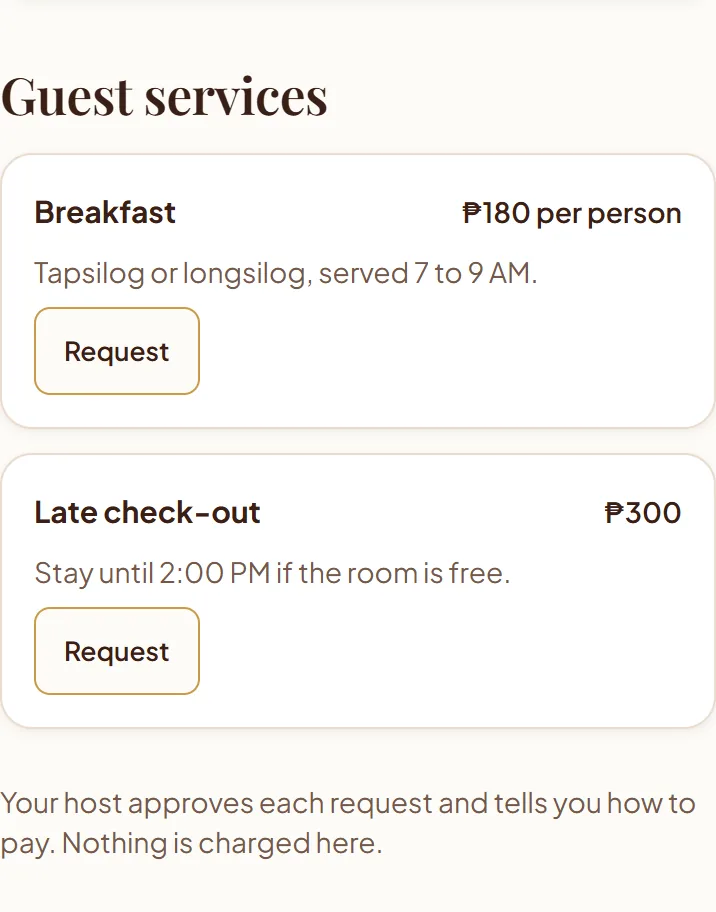
Sample services on a direct-booking page. Guests see a Request button, not an Airbnb one.
3What your guest does
- They open your page and tap Request on a service.
- They fill in the form: how many, the date, and optionally a first name and a note for you.
- They enter the stay code from their booking message, if they haven't already unlocked your page. Their phone remembers an unlocked page, so the field doesn't appear again.
- They tick the box agreeing to share the request with you, and press Send request.
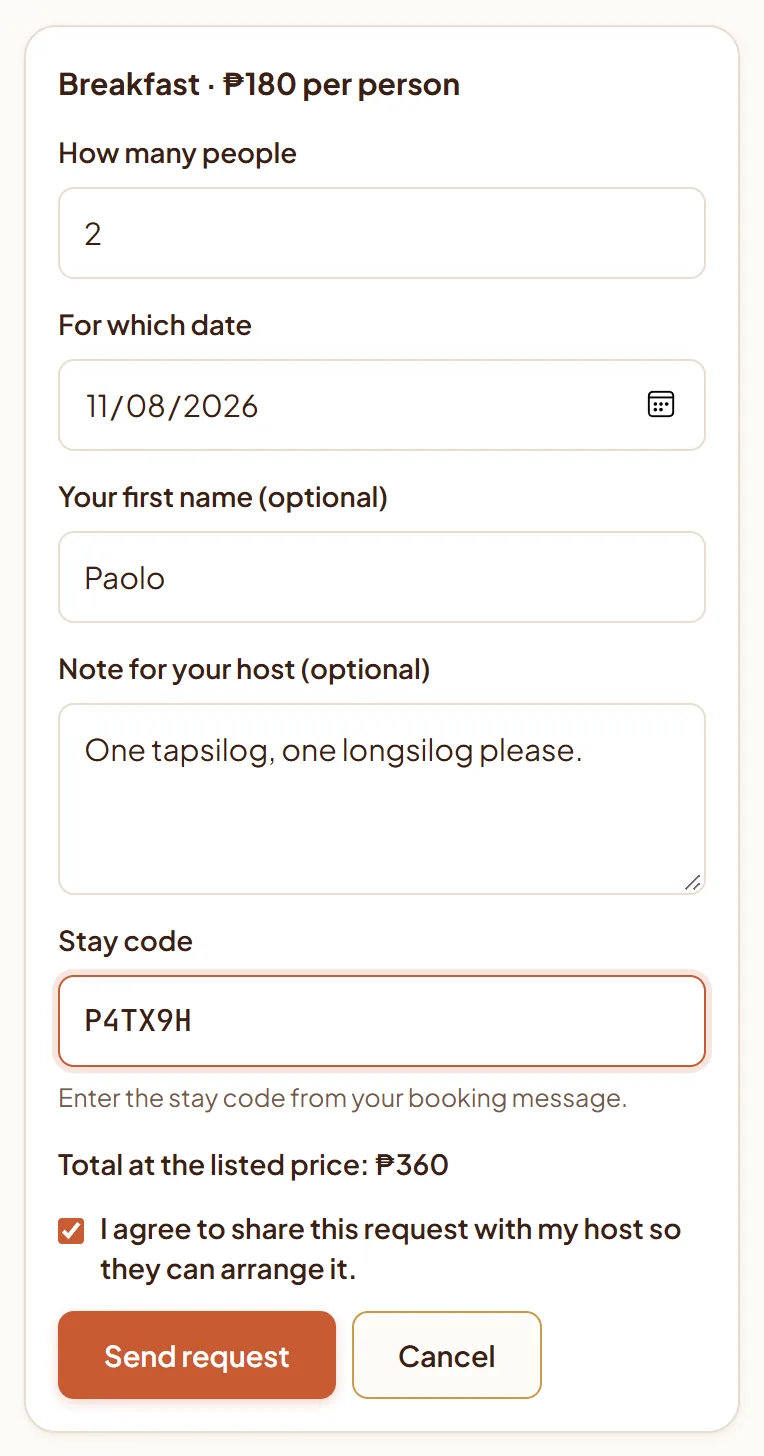
The request form. It shows the total at your listed price, and it never asks for an email, a phone number or a payment.
The form shows the total at your listed price, and the price is saved with the request. If you change your price later, requests already sent keep the amount the guest saw.
The form checks the details as it's sent. If the same guest sends the same request for the same date twice, the second one is refused, so a double tap won't double your work.
4Approve or decline
You get an email when a new request arrives. Open Service requests from the sidebar, or press Requests on the Guest services page. The Open tab shows what needs your attention. Closed keeps the rest.
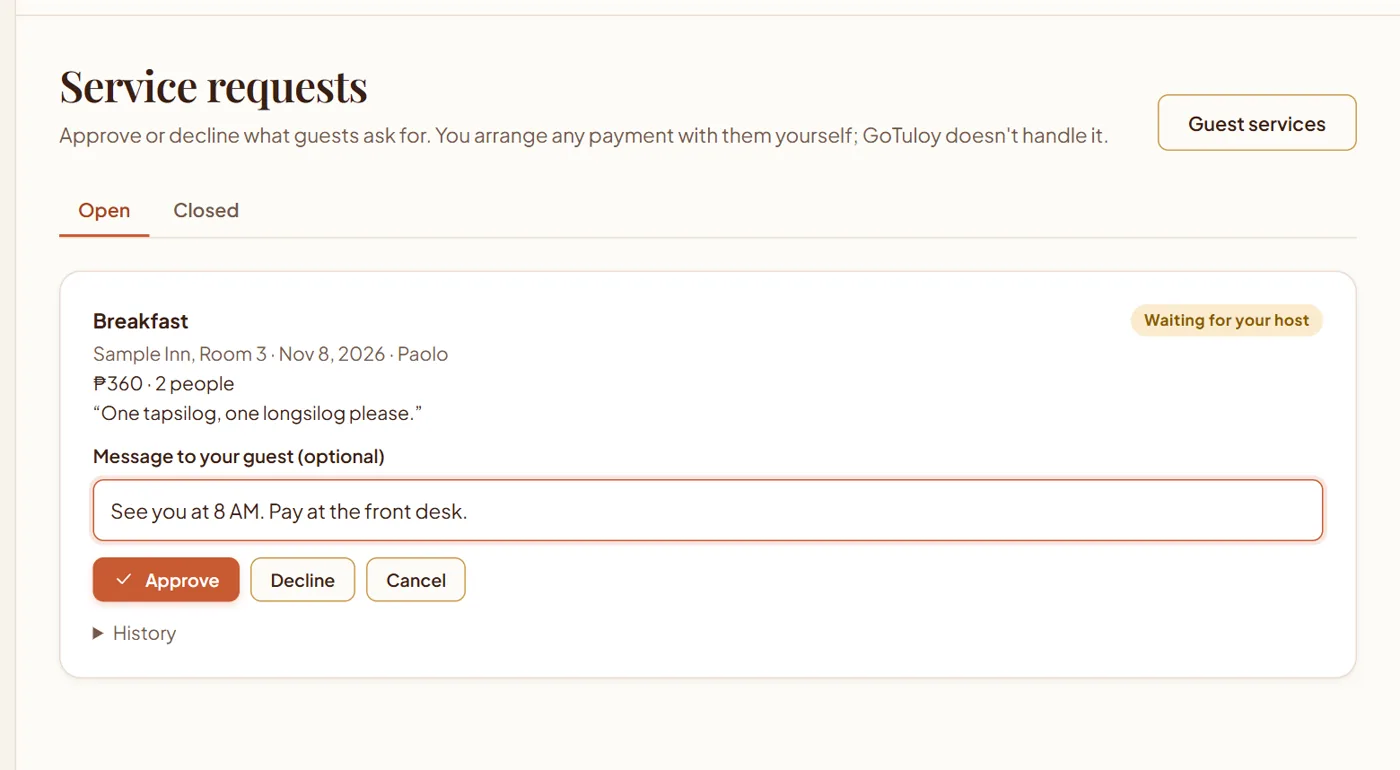
A sample request waiting for an answer, with a message typed for the guest.
Each request shows the service, property, date, total, and the guest's first name and note if they added them. Then:
- Type a short Message to your guest, up to 280 characters. This is where you explain how to pay: "Pay at the front desk at check-in." It's optional, but guests will want it.
- Press Approve or Decline.
- After you've delivered the service, press Mark done.
Open History on any request to see when each status changed and who changed it. Those records are never edited.
5What your guest sees next
After sending, the guest sees a status card on your page, and their phone remembers it. It also links to a private status page they can keep. When you respond, the status and your message update there.
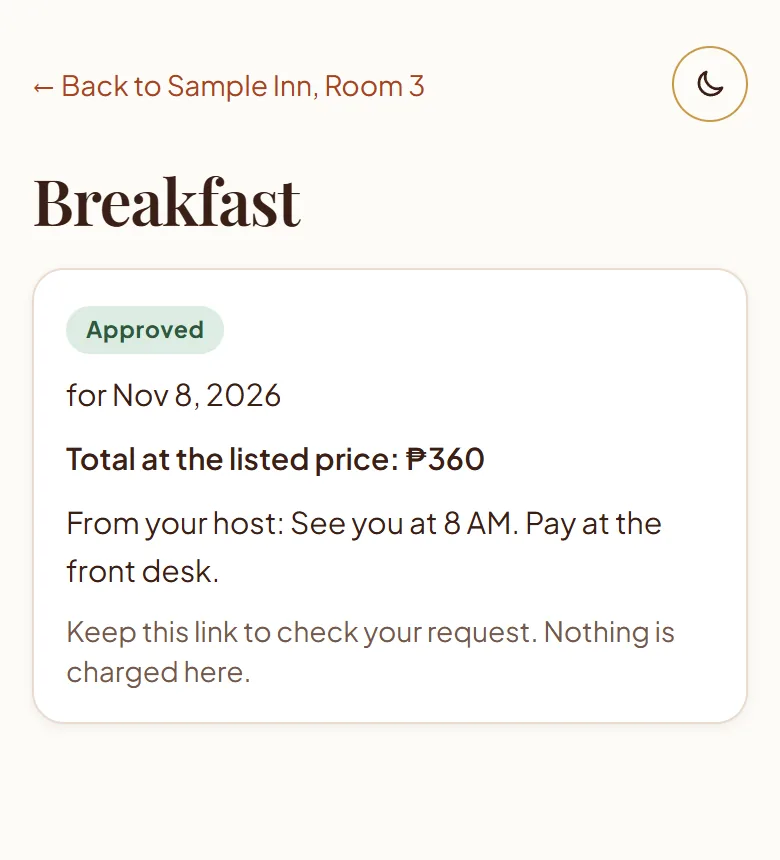
The guest's private status page. It says plainly that nothing is charged here.
Statuses are simple:
- Waiting for your host: you haven't answered yet.
- Approved: you said yes.
- Declined: you said no.
- Done: you've delivered it.
- Cancelled: you or the guest called it off, or it wasn't answered before the date.
GoTuloy has no way to send the guest an email or text, because we never collect those details. If something is urgent, or your plans change, tell them directly using the contact you already have from the booking.
6How to handle payment
GoTuloy never holds or moves money for hosts or guests. There are no payment fields on the form, and no payment records in your dashboard. You agree on it yourself and say how in your message:
- "Pay at the front desk when you pick it up."
- "Add it to your balance at check-out."
- "I'll send my payment details in our Messenger chat."
Don't take payment before you've approved. And keep your own record of what's been paid, because Mark done tells you the service was delivered, not that it was paid for.
7Privacy and cleanup
You only get what the guest chooses to type: an optional first name and note. Seven days after the requested date, those are cleared automatically. The service, date and amount stay for your records.
A request nobody answered before its date is cancelled automatically, so it stops holding one of your daily slots. Answer requests promptly to keep guests from waiting.
Frequently asked questions
Can a stranger send requests to my page?
Not without your current stay code. Change the code regularly and old guests can't send new requests. See Change your stay code and keep door details safe.
Can a guest cancel?
Yes, from their private status link, while the request is still waiting for you. Once you've answered, they need to ask you directly.
Can I change a price after a guest has requested it?
You can edit the service, but it won't change requests already sent. If the amount should differ, say so in your message to the guest and agree on it directly.
What happens if I delete or pause a service?
Guests can't request it any more. Requests already sent keep their details, so you can still answer them.
Do I have to publish after adding a service?
No. Services and requests are live. The only exception is a page last published before you started using guest services: press Publish changes once so the section is added.
Which plan do I need?
Guest services is part of the Host plan, at ₱249 per live page a month or ₱2,490 a year.